Image: Cursor
Why it mattersA developer who started a long-running agent on their laptop can watch its output and give it a next step from a phone, which is a different working pattern from a cloud agent and comes with a different set of practical limits.
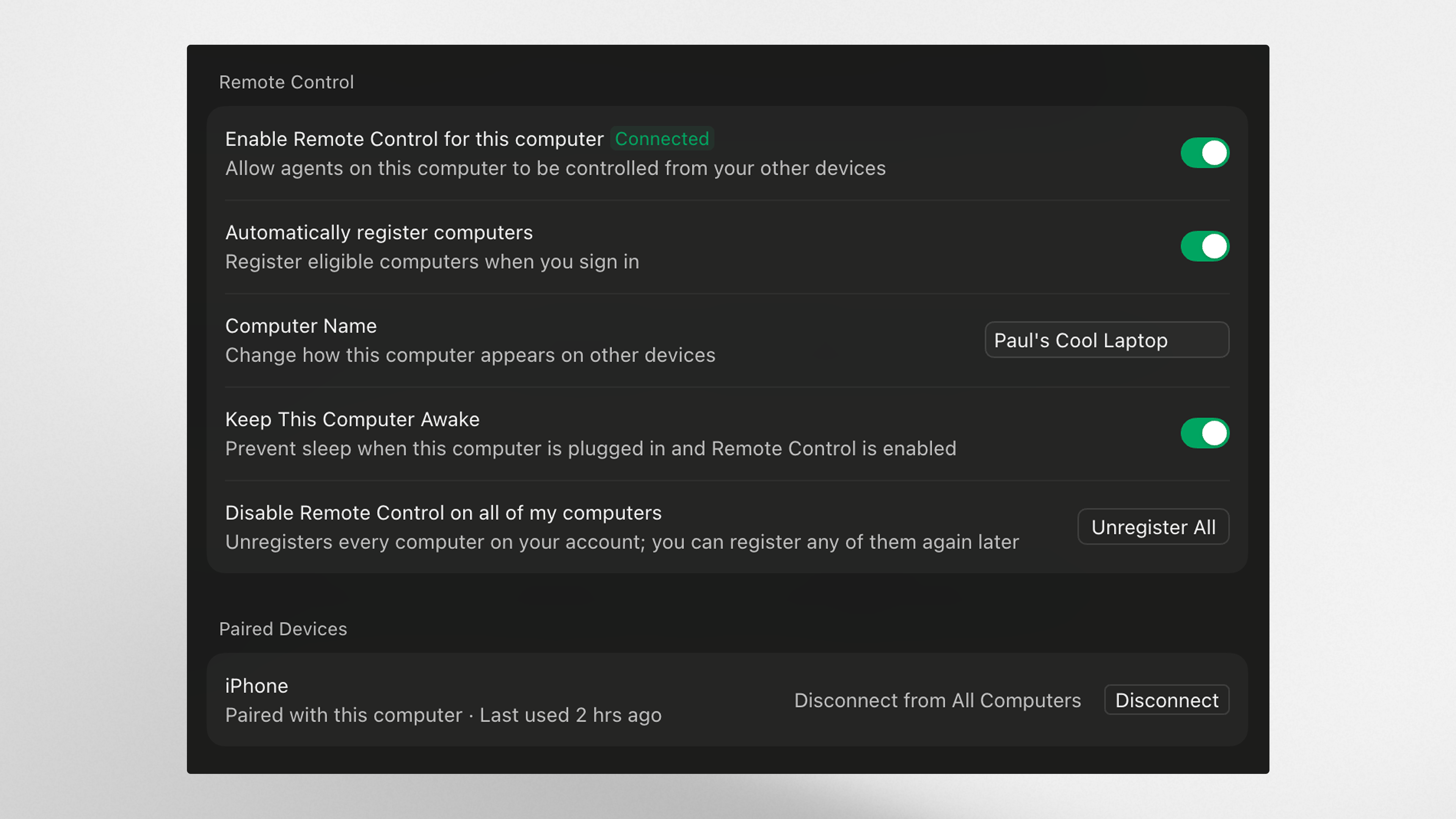
A long-running coding agent on a laptop is now reachable from a phone without first moving the work into the cloud. Cursor's latest changelog says "You can now see and reply to the local agents running on your computer from the Cursor iOS app," which is the setup a developer uses when the files, the environment and the credentials all live on one machine and they are standing in a queue somewhere else.
Cursor's release note runs to a short list of behaviour and constraints. Computers signed into the same account "appear automatically in the iOS app", and tapping one shows what each agent on it is doing. The user can send a reply, approve a next step, or type a new instruction straight back to the agent that is already running on the desktop machine.
Pairing and defaults
The first time a phone connects to a computer, Cursor sends a pairing request that has to be approved in the desktop app, so a stolen iOS session alone is not enough to send commands to a laptop that was never approved. On personal accounts, remote control "is enabled by default", so no setup is required beyond installing the iOS app and signing in. On Enterprise organisations, Cursor requires an admin to turn it on under Security settings before anyone on the team can use it.
What has to be true for it to work
Cursor is clear that the agent itself does not move to the cloud. The iOS app shows the output of a session that is still running on the user's own machine, which carries two practical constraints the changelog states directly.
The first is network: "Your computer needs to stay on and online for remote control to work." A sleeping laptop, a dropped Wi-Fi link, or a VPN that cuts out when the laptop is idle all break the connection, and the mobile reply has nowhere to go.
The second is power: "Your computer needs to be plugged in with the lid open" to stop it sleeping. A closed-lid laptop with an external monitor at home will keep running; a closed-lid laptop in a bag will not. Cursor does not describe a wake-on-reply fallback, so keeping the machine awake until the agent is done falls to its owner.
How this differs from a cloud agent
Cursor already offers Background Agents, which the company runs on its own virtual machines and bills by compute use. Those have no laptop-awake rule and no pairing step. The new iOS flow is for the case where a developer has deliberately kept the work on their own machine: the files are local, the shell has the right environment variables, the git credentials are the user's personal ones, or the project is under a company policy that forbids a third party running the code.
A team that uses Cursor on client machines or in a regulated environment has a reason to pick this flow. A solo developer who wants an agent to keep working while they are away from a desk can start the task before they leave, then check and reply to it from a phone. Either way, the trade is that an unexpected sleep or a dropped network means the agent has stopped answering, and the iOS app can only wait for the laptop to come back.
Source
Primary: Remote control for local agents, Cursor changelog.
This item was written by an AI system from the linked source. Reveneau is responsible for what it publishes.
Get AI News in your inbox
New developer tools, model and agent releases, and how teams are actually using them to release software. Short, and only when there is something worth reading.