Image: Kikumap
Why it mattersA developer who runs many chats loses track of which one is waiting. Kikumap puts them on a map and plays a sound when one finishes.
A long day with many AI chats open leaves you unsure which one is still running. You also miss the ones that finished an hour ago. Kikumap is a free macOS menu-bar app that fixes both. It lays out your pinned chats as a mind map. It plays a sound when a chat needs you. It shows the day's work on a timeline.
The project is by tang1693 on GitHub. It sits at 111 stars with 100 forks after three days, under the MIT licence. It is written in Swift and AppKit with no outside dependencies. It needs macOS 13 or later. It runs on Apple silicon and Intel. The latest build is a signed Kikumap.dmg on the GitHub releases page.
What goes on the map
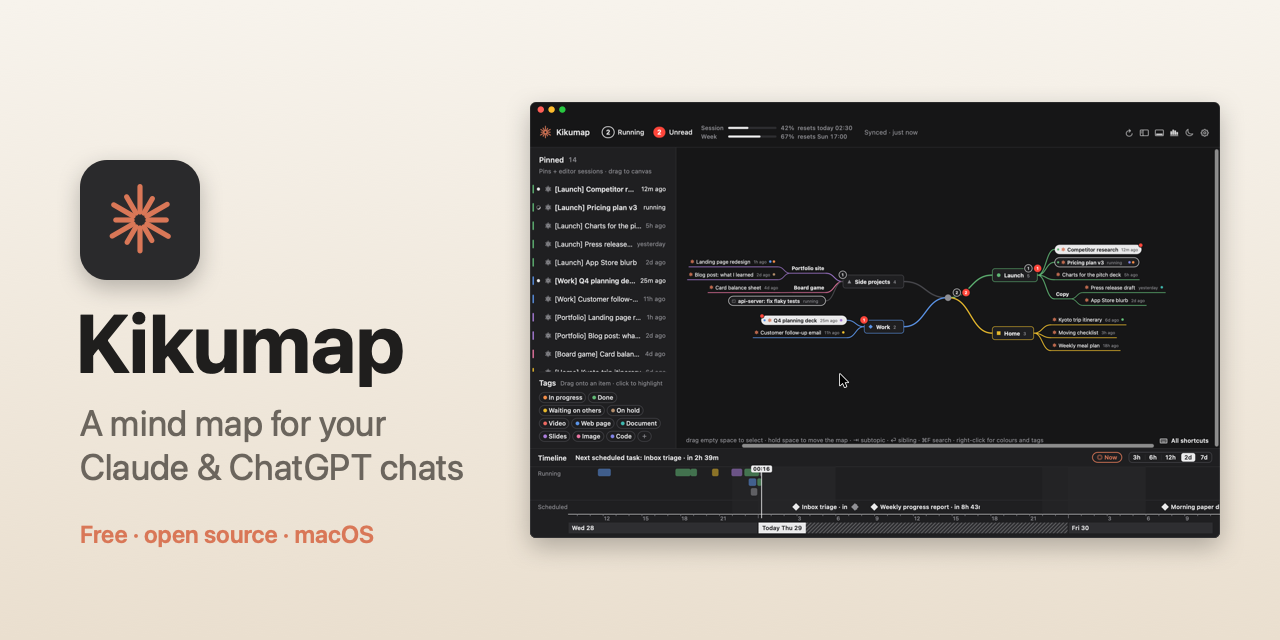
Kikumap reads what is on your Mac. From the Claude desktop app, it shows the chats you pin, in the same order as the app. It also shows the Codex chats you pin in the ChatGPT desktop app. It shows your Codex sessions in VS Code and the terminal. Plain ChatGPT chats live on OpenAI's servers. The readme says Kikumap cannot show those. Claude Code sessions in Terminal, VS Code, Cursor, and the Claude app's Code mode come through Claude Code's hooks.
The menu-bar icon spins while a chat runs. A red badge counts the chats you have not read. An exclamation mark means one is waiting for your approval. You can set a sound and a voice that reads the chat name out loud. The readme says the Claude app has no public API. Kikumap reads the Claude window through macOS Accessibility.
How the mind map works
The left column lists your pinned chats. The map on the right starts empty. You drag a chat from the column onto a topic you make. The other topics slide aside to show where it will land. You can select several chats at once with a drag box or with Command-click. Then you drag them together. The readme says the map never rearranges itself on its own.
Topics take a colour and a shape. The shapes are square, circle, triangle, diamond, cross and star. The colour flows down the branch and into the timeline. You can tag chats with words like "In progress" or "Waiting on others". Clicking a tag highlights every chat that has it. The timeline at the bottom shows when Claude or ChatGPT worked on each chat. Running and scheduled tasks sit ahead on the same line.
What you can take out
Pick some topics and Kikumap writes a folder for each chat. The folder holds a hand-off summary that Claude writes inside the chat. It also holds the prompts, the full conversation, every artefact and every attachment. The export can keep itself up to date. An import starts a new pinned chat for each folder in a new Claude account. The summary and the artefacts come with it. You can keep going where you left off.
A developer who runs several agent sessions a day loses time to one question. The question is which chat is finished. A real menu-bar signal answers it. A map that stays where you put it answers it over several days. The export answers a second question. The second question is how to move months of work to a new Claude account without clicking through every chat.
Source
- Kikumap on GitHub, by tang1693
- Kikumap website
This item was written by an AI system from the linked source. Reveneau is responsible for what it publishes.
Get AI News in your inbox
New developer tools, model and agent releases, and how teams are actually using them to release software. Short, and only when there is something worth reading.

